---
title: Installing on Edge
description: How to install the OMM script on Microsoft Edge
sidebar:
label: Installing on Edge
icon: /edge.svg
badge: New
---
Before installing the userscript, you'll need a UserScript manager to manage it.
1. **Install ScriptCat**
Install the ScriptCat extension from the Chrome Web Store.
Get ScriptCat
2. **Turn on Allow User Scripts**
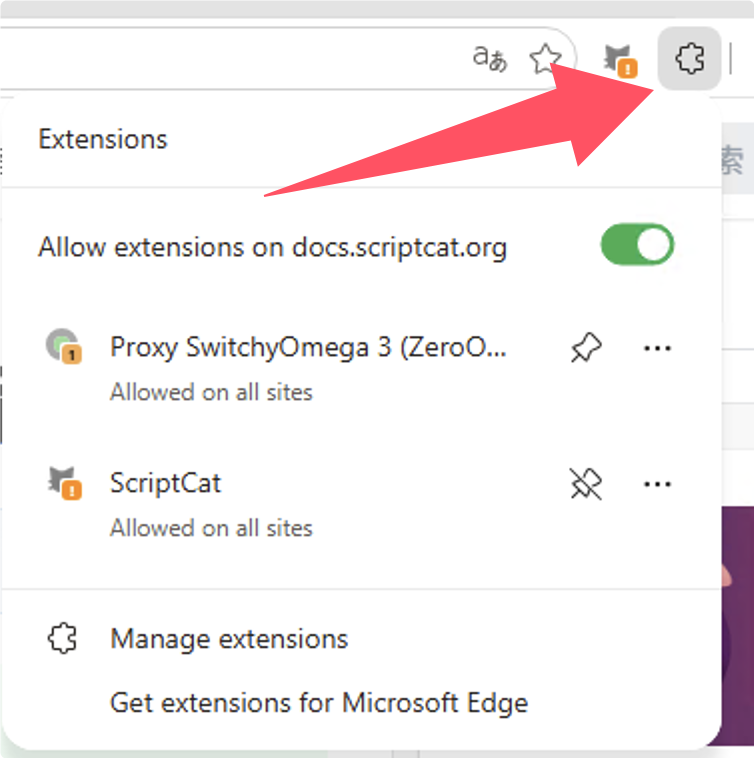
Open the browser's extensions list, then click the three-dot menu next to the extension
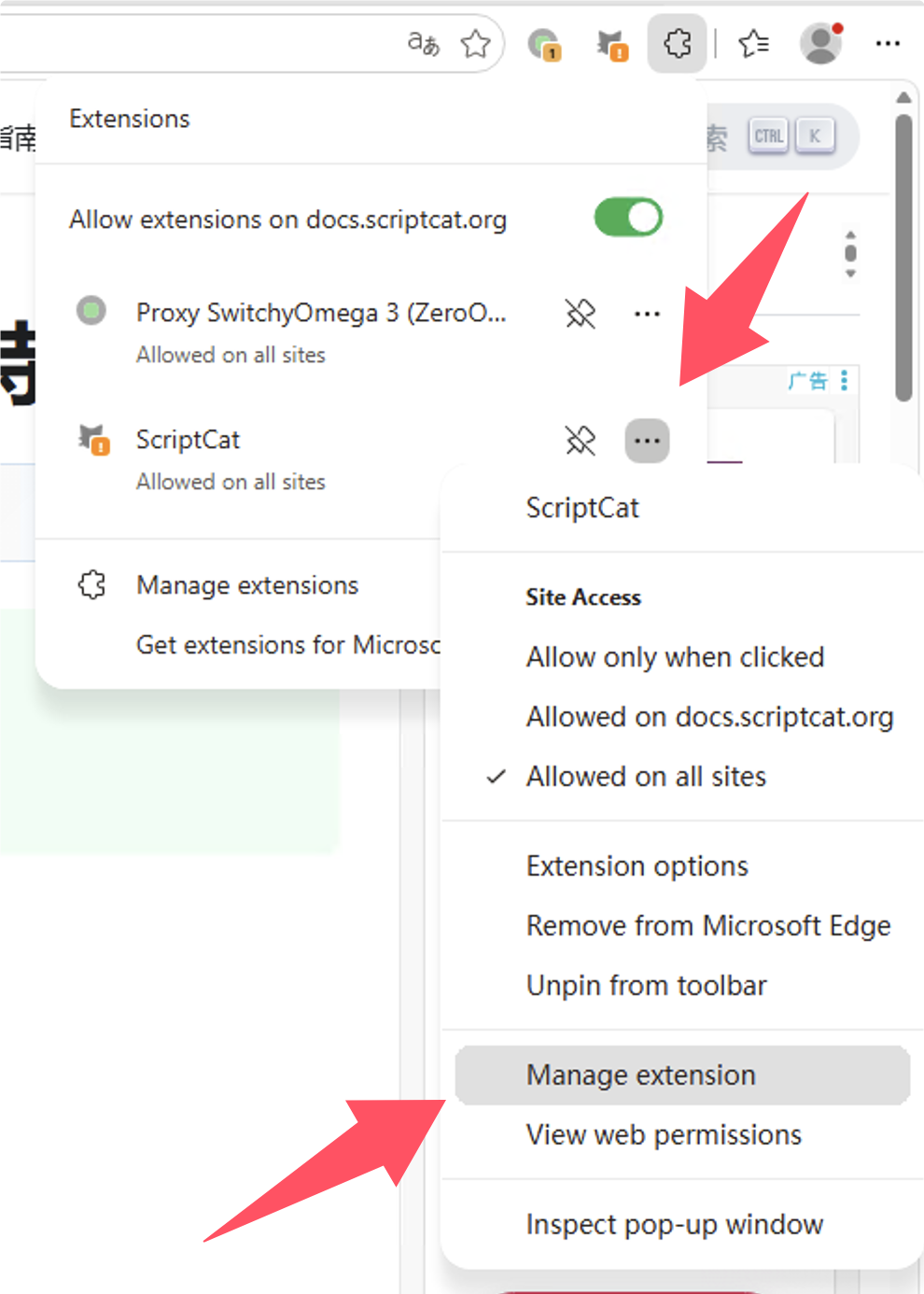
Click **```Manage Extension```** in the menu
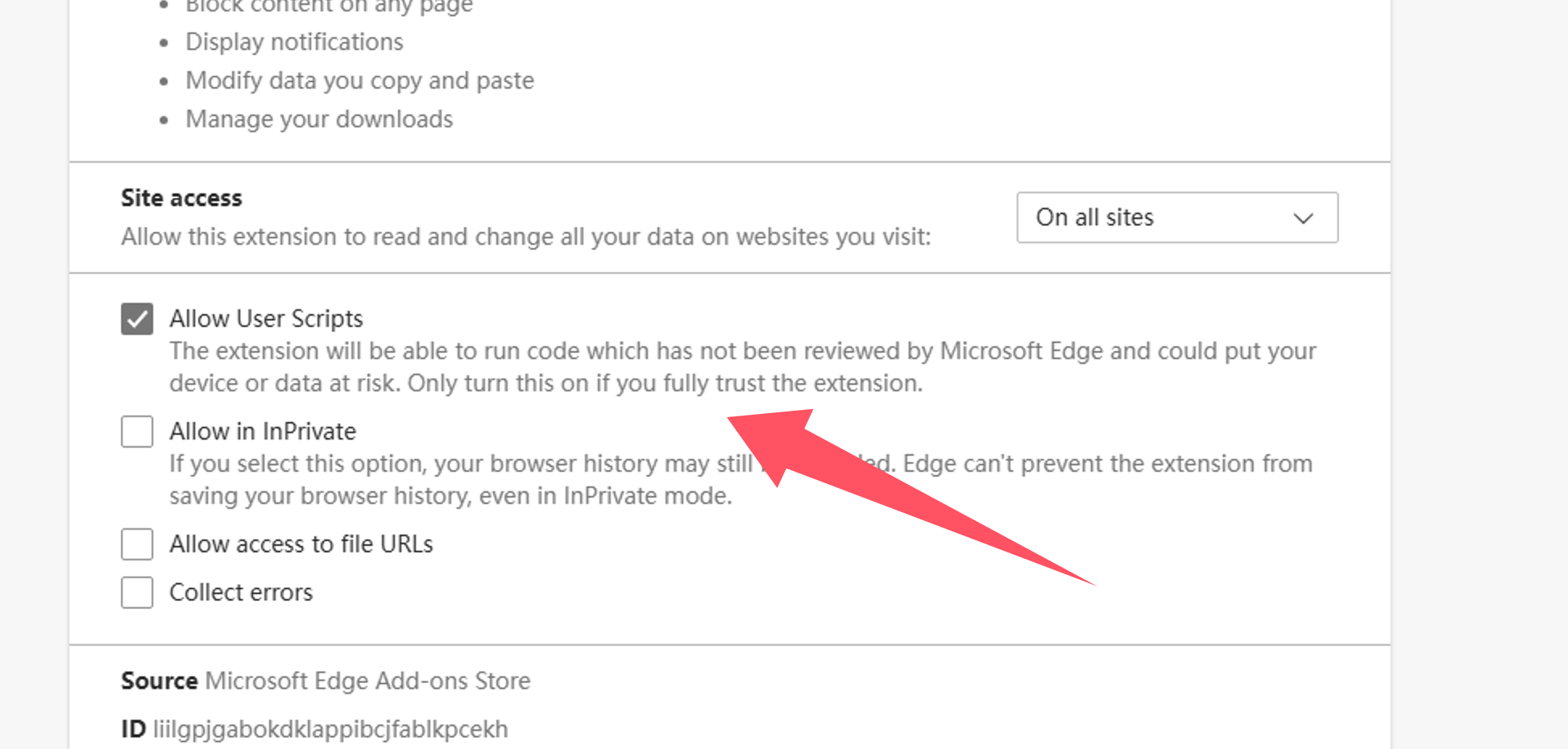
In the ScriptCat extension details page, find the **```Allow User Scripts```** option and enable it. Then disable and re-enable the extension, or restart the browser to make the script functionality effective.
3. **Enable Developer Mode**
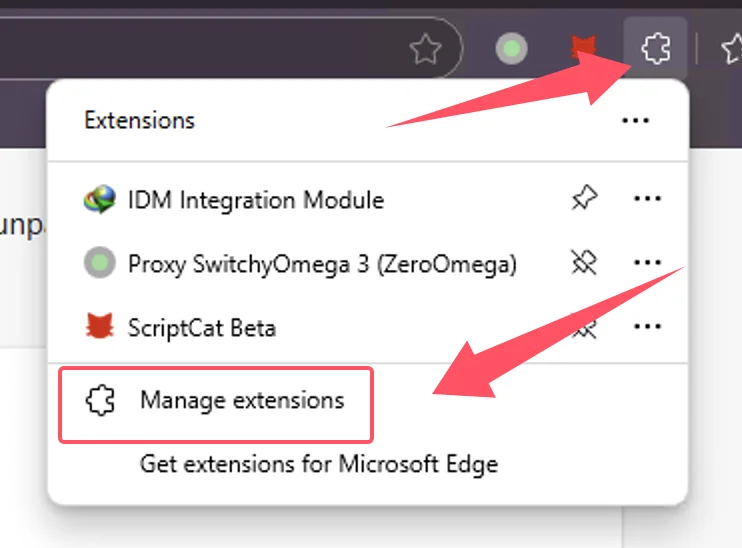
Toggle the **```Developer mode```** switch on the left side
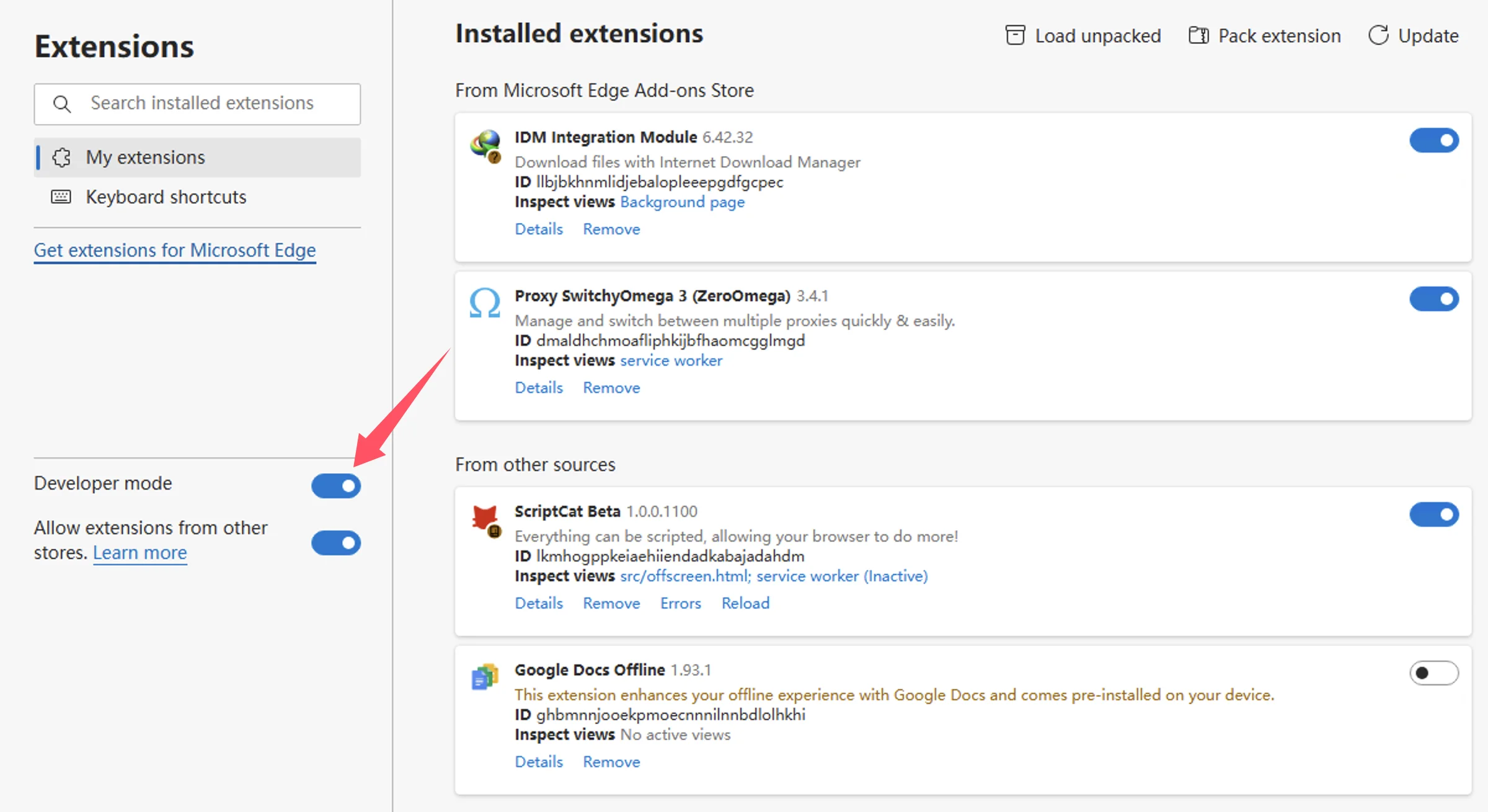
After enabling developer mode, restart the browser to make the script functionality effective.
4. **Install the userscript**
Once ScriptCat is installed, and your browser restarted, install the OhMyMathpad userscript.
Install userscript